The iOS Mail App is one of the most commonly used stock apps on an iDevice. If you are like me, then the most common way to use your mail is all about the basics. Read, write and delete. The problems that we encounter are the ones that really annoy us such as unable to get emails, or email count shows unread messages when there are none or you are unable to send any emails from your account. Apart from the basics, iOS Mail offers a wide variety of features that are often ignored by many users. These features do make your e-mail life easier. In this article, we will discuss three of these iOS Mail features that allows for better e-mail management. We will also focus on a few common problems with Mail both for iOS as well as El Capitan along the way.
Contents
Searching for a Particular Email
We have all encountered moments when we are looking for that “one” email from a sender that came to us a long time ago. Perhaps it had an attachment that you need to track down. The usual way is to search for this by going to your inbox and looking for the particular sender or email. With iOS 9, the mail app is integrated with Spotlight and Siri. You can leverage the Proactive mail search functionality to search for your emails. It is easy to access this feature on your iDevice.
Step – 1 Swipe the home page to the right as as far as it can until you reach the Spotlight search page. Tap on the search field at the top of the screen to display the keyboard. Enter your search terms here and your iPhone will display you all the emails that have the particular search item. Tapping on one of those results will open up the email in your mail App.
Step – 2 You can control what results you want to see from the spotlight search above. Go to Settings > general > Spotlight Search and choose the apps for which you want to show the results. For example if you want to limit your search results to just emails, notes, Safari and messages, limit it to these options. If you happen to store your email attachments into iCloud drive, you can select that in the option as well.
One of the issues faced while using spotlight search to look for your emails is that the search can sometimes display emails that were previously deleted. In order to tackle this issue, you can tap on Settings > General > Spotlight search > uncheck messages.
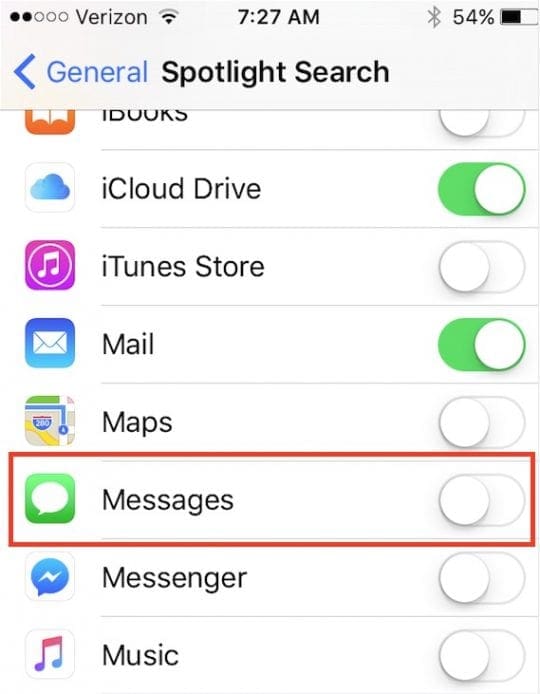
Turn your iphone off, wait for a few and then do the same steps a couple of times. Once you have done it a few times, go back to your spotlight search settings and > check messages. That should take care of this annoying issue.
Treating your Favorites as VIPs
The VIP Sender list functionality in iOS Mail has been around for quite some time. This feature makes it easier to access emails from your favorite friends and family. Although most people have seen this functionality, its popularity has not translated into actual usage. The VIP list also comes in handy when you are setting up your Do-Not-Disturb settings as you can tag your VIP contacts as the only people that can reach you when your iPhone is on the Do not Disturb mode. This is easy to set up.
Step – 1 Open your Mail app and find a message from someone you want to make a VIP Sender. Simply tap their name in the from field and you will be shown details about them. Here you will see the button that says “Add to VIP”. Tap on this and a small star will appear next to their email address announcing that they have been added to your VIP list.
Step – 2 iOS Mail will automatically add any new emails from your VIP contacts into the VIP mailbox. You can always go back and remove VIP Status by clicking their name in the from field of an email and selecting Remove from VIP.
VIP Mailbox not showing emails for El Capitan Users.
Not quite an iOS problem, but some users on their Mac have seen this issue with their VIP box set-up after upgrade to El-Capitan
Some users that use the VIP Inbox functionality had observed that they were not able to use it on their Macs following an upgrade to El-Capitan. This issue is easily resolved on your Mac by a change in setting.
- Click on a single VIP Mailbox.
- Go to View and then Select Sort select all Mailboxes
- Go to your Main VIP Mailbox and you should see all your VIP emails will appear
Using the Mail Drop Functionality For large attachments
With iOS 9.2, Apple release the mail drop functionality for iOS devices which was previously only available on Macs. This feature is really handy when you are trying to send a large attachment via your email. We covered this functionality a while back on our site. Please check the following article.
RELATED: How to mark up messages in your e-mail
We hope that you try one of these tips and let us know your experience. If you are not using the VIP functionality, its pretty good actually. We suggest that you give it a try. When you encounter any email related issues, please check out our troubleshooting collection on Mail.