Over the past few years, the iPhone’s most improved built-in app is Notes. What used to be cause for rolling your eyes, the Notes is now a feature packed app for storing text, photos, hand-drawn sketches and more. With all the changes, it’s hard to keep up. In this article we show you how you can get the most from the built-in Notes app.
Using Rich Text
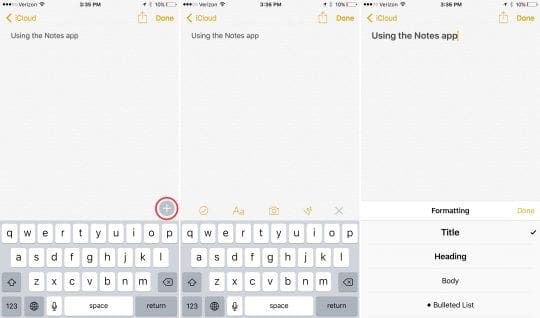
In the past, there wasn’t much in the way of text formatting in the Notes app. This all changed in iOS 9 and you can now create titles, headers and even bullet points and checklists to your heart’s content. The ability to format text opens the door of Apple’s Notes app to a whole host of uses.
To access the formatting options on your iPhone or iPad open a note and tap the plus symbol at the bottom right of the note. Next, tap on the “Aa” icon and you will be greeted with a number of text formatting options.
Adding Photos, Sketches, Links and More to Notes
The new features in the Notes app go far beyond text formatting. Notes now supports photos, sketches (including Apple Pencil support) and even the addition of web links all directly inside a note.
After tapping the plus symbol during the process described above, you will also notice a checkmark symbol icon, camera icon and a squiggly line. The checkmark is for creating check boxes for task lists, I’m sure you guessed the camera is for adding photos and squiggly line allows you to add sketches.
Where the Notes app flexes it muscle is with its share extension. You can now add all sorts of information to a note while using any other app on your iPhone or iPad by using the share extension. Beyond adding text, you can also add links to web pages directly into a note. To do this, tap the share icon while on a web page, then select Notes. Here, you have the option of selecting the particular note where you want add your information.
Locking Notes with Touch ID
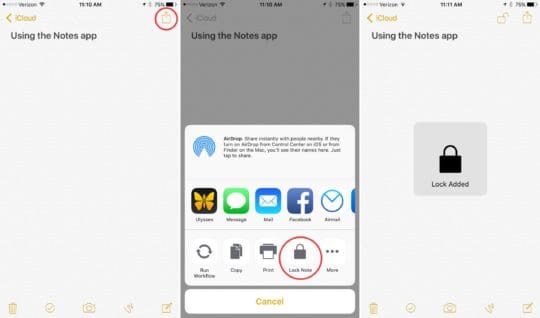
As data security continues to be an issue populating headlines, the added ability to lock specific notes is welcomed. The feature, however, is less than intuitive to set up.
While inside a note, tap the share button to bring up the share menu. In the bottom row of options you will see “lock note”. Select this option and you will be guided through the process of setting a password and activating Touch ID. Now, you can tap the lock icon located across the top of the note to toggle the feature on and off. As I mentioned, this set up process could use a bit of TLC, but the feature is an excellent idea from Apple.
The new features Apple has added to the Notes app are numerous. More than ever before, the app is an excellent utility that now has something to offer just about every iPhone and iPad user.