Recently we received a few emails about an issue that some users were experiencing on their iPad and iPhone. When they tapped on iOS Mail, they were able to open their inbox, see the sender details as well as the subject line of the email.
…But when the users try to tap on the email to open it, it either freezes the mail app or exits out of the mail app.
Other readers report that their email isn’t downloading at all or only some are downloading. It can be very irritating, especially when you are waiting for an email that never seems to arrive.
Contents
- 1 Is iCloud mail down, AOL down, what gives?
- 2 Quick Tips
- 3 Follow These Tips To Get Your iPad or iPhone Mail Working
- 4 Make sure you checked the Mail app syncing
- 5 How to fix iPhone or iPad email when it is not updating
- 6 Is Your Mail Still Not Working?
- 7 Still not working, delete the Mail account again and add it in manually
- 8 My iPhone mail still doesn’t work…
- 9 User tips on how to get iPhone mail working again…
- 10 Reader Tips
Is iCloud mail down, AOL down, what gives?

Most of the time, once you have set up your email accounts correctly on your iDevice, it works without any significant hiccups.
There are however times when you encounter these weird issues either following an update to the iOS or after installing a third-party app on your iDevice.
To fix this problem, please follow the steps outlined below. Thanks to our readers, we were able to test this issue and the related solution.
Before you proceed, please remember to write down your email id and the associated password for the account and keep it handy.
Quick Tips
Follow These Tips To Get Your iPad or iPhone Mail Working
- Make sure your account is set-up to sync Mail
- Check if the iCloud, AOL, Outlook, or Google mail servers are down via sites like Down Detector or similar
- Look at the reports for the last 24 hours as well as a Live Outage Map. See if your current location is a hot spot for a current outage
- One of the most common reasons theMail app isn’t downloading emails or working correctly is when the internet connection is absent, down, weak, or spotty. So the first thing to try is to reset your WiFi or Mobile Data Connections.
- Open Settings > Toggle Airplane Mode On and the Off Again
- Open Settings > WiFi and toggle it Off and On Again
- Try quitting the Mail app altogether
- Double Tap Home or swipe up the Home Gesture Bar to open your app previews
- Swipe side to side to locate the Mail App preview
- Swipe UP on the Mail window to close the app
- Tap Mail to open again
- Restart Your iPhone or iDevice
- Hold down the Power button until you see the message “slide to power off.”
- Slide to the right to power down
- Once switched off, press the Power button again to turn back on
- Perform a Forced Restart
- On an iPhone 6S or below plus all iPads & iPod Touches, press Home and Power at the same time until you see the Apple logo
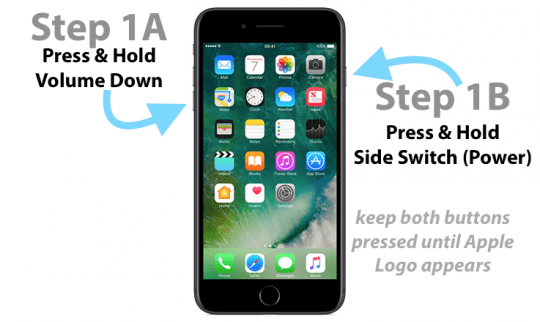
- For iPhone 7 or iPhone 7 Plus: Press and hold both the Side and Volume Down buttons for at least 10 seconds, until you see the Apple logo
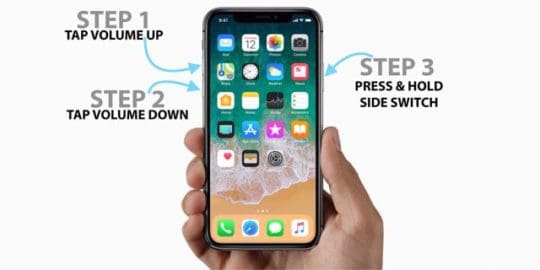
- On an iPhone X Series (XS, XR, and X) or iPhone 8 or iPhone 8 Plus: Press and quickly release the Volume Up button. Then press and quickly release the Volume Down button. Finally, press and hold the Side button until you see the Apple logo
- Reset Network Settings
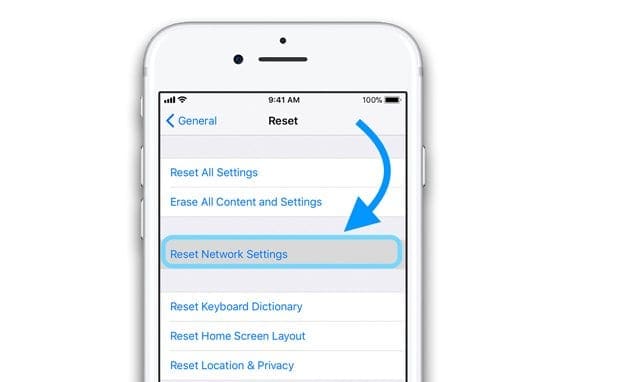
- Go to Settings > General > Reset > Reset Network Settings
- Enter your password if asked
- Confirm to reset
- ONLY do this if you know your WiFi ID and password – these need to be entered again after resetting
- Go to Settings > General > Reset > Reset Network Settings
Didn’t Answer Your Mail Related Question? Try these as well…
- Can’t Update or Change Email Passwords on iPhone or iPad?
- Swipe to Delete Mail Not Working? Fix it
- Find Passwords and iPhone’s Email Account Info on iOS 11
- Tips to Fix Unable to Move Message Mail Error
- Unable to Delete Mail in iOS
- Customize iOS Mail Gestures
- Customize Mail Attachment Options
- Fix Server does not allow relaying email error
Make sure you checked the Mail app syncing
Make sure your email account is syncing with the Mail App.
- Go to Settings App > Passwords & Accounts
- Tap on an email account
- Check that Mail is toggled on and anything else you want to sync with your iPhone or iPad (Contacts, Calendars, Notes, etc)
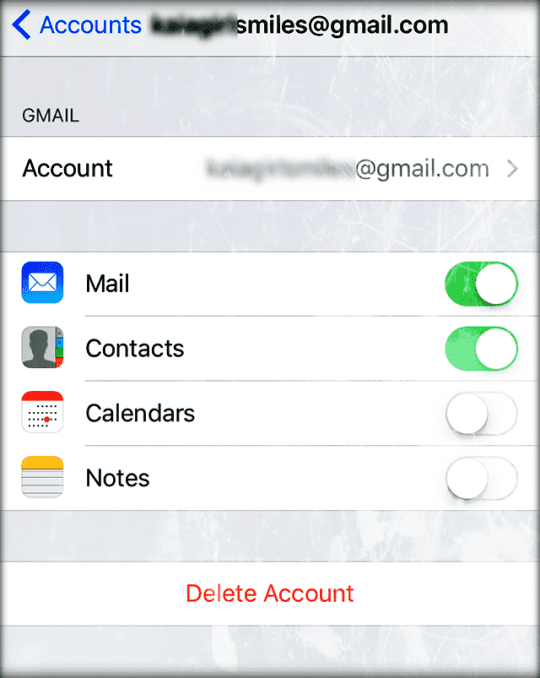
- If Mail isn’t toggled on (green), switch it on
- Reopen Mail app and check if your mail now syncs
How to fix iPhone or iPad email when it is not updating
Step 1: Mail Not Opening
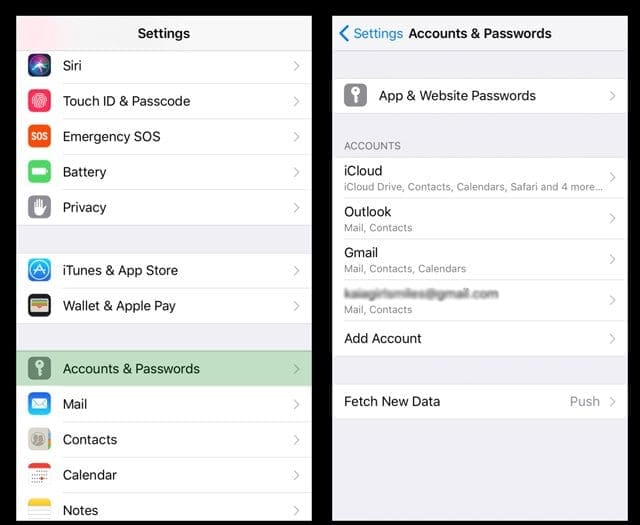
Go to Settings > Passwords & Accounts (or Accounts & Passwords, Settings > Mail, or Mail, Contacts, Calendar)
Step 2: Mail Not Opening
Tap on the email account that you are having problems with – this example shows iOS 11.
For iOS 12, find Settings > Passwords & Accounts and for iOS 10, look for Settings > Mail.
Step 3: Delete your email account
Delete the email account.
Please note you will not lose your stored emails or your contacts related to this account.
Email is stored on the server, so once you solve the issue, they show up again. 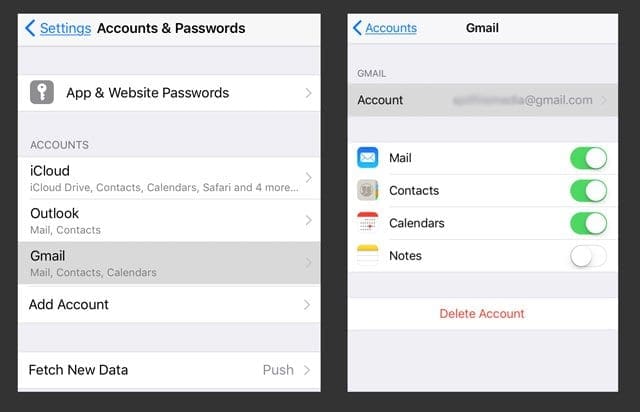
Step 4: Restart your iDevice
Once you have confirmed the deletion of the account, restart your device.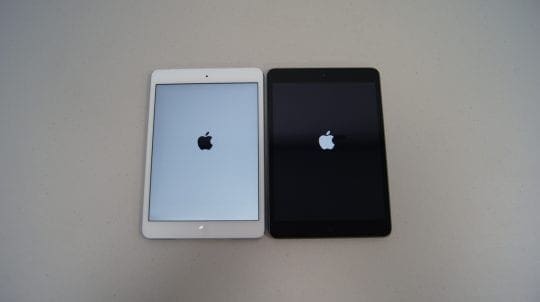
Step 5: Add email account
Go back to Settings > Passwords & Accounts (for iOS 11, Accounts & Passwords or in iOS 10 and earlier, Settings > Mail or Mail, Contacts, and Calendar.)
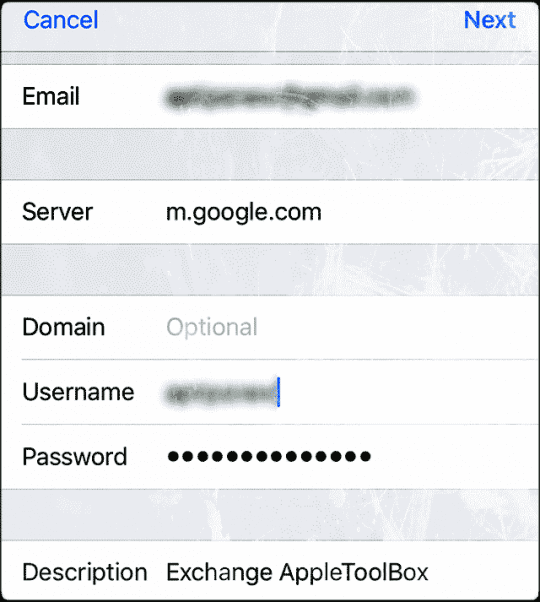
Tap on Add Account and follow directions to set up your email account on the device.
If you have issues in setting up the new account on your iDevice, please see detailed instructions from Apple here.
Step 6: Set up your email account
Once you set up your mail account on your iPad or iPhone, give it a try. You should be able to download and open up your emails and read them.
Is Your Mail Still Not Working?
- Close your Mail App again by pressing the Home button or swiping up the Home Gesture Bar, locating Mail App Preview, and swiping that up off the top of your screen to close
- Then, toggle Cellular Data ON (Settings > Cellular > Cellular Data)–if it’s already ON, toggle it off, wait 30 seconds, and toggle back on
- Reset your network settings by going to Settings > General > Reset > Reset Network Settings
- This removes all stored WiFi network passcodes, so have those available to enter these in again
Once your device restarts, connect to a WiFi network and launch the mail app again. See if it’s connecting and working normally.
Still not working, delete the Mail account again and add it in manually
1. Go to Passwords & Accounts
2. Select Add Account
3. Select Other (not Exchange, Google, Yahoo, AOL)
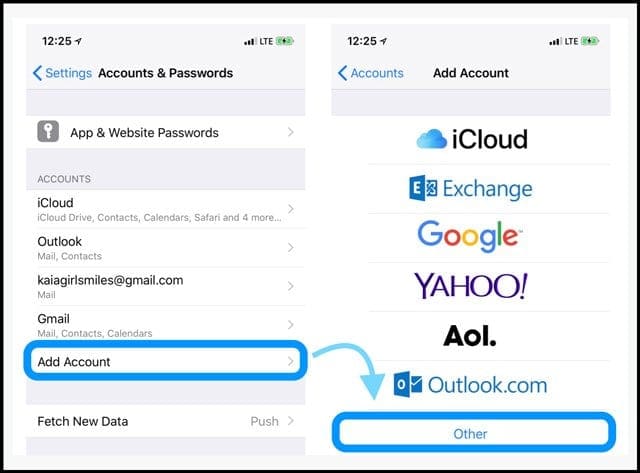 4. Tap Add Mail Account
5. Enter your user ID and password
6. Enter the following details for the server manually–find these details via your email provider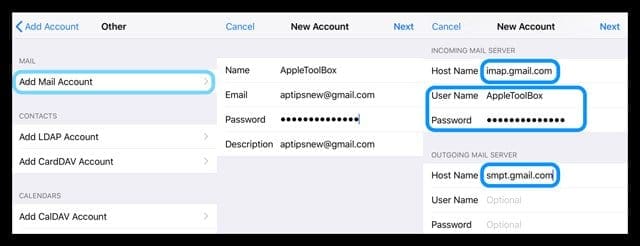 7. It should start verifying your account–it sometimes takes a little time so be patient
8. Once confirmed, choose what services you want to sync with your device–Mail and Notes or others
9. Open the Mail app and see if your mail is now available (you may need to wait for all your email to download to your device)
My iPhone mail still doesn’t work…
Look at your mail account and its settings via a web browser (not an app). 
For AOL Mail, check if you enabled two-step verification. If possible, disable it. This process is known to cause problems with the iOS Mail App.
Once disabled (toggled off), try adding back your AOL Mail Account and see if it works.
If it doesn’t work at first, wait a few minutes and try again–it sometimes takes a bit of time before those changes go live.
User tips on how to get iPhone mail working again…
Reader Tips 
- For those having problems with AOL Mail, try the following:
- Open AOL in a browser–not via an app or the Mail Settings
- Go into settings for your AOL account under account security there is a 2 step login process
- Click Manage
- And make sure it’s turned on
- Then under Connect Apps select manage
- Click the down arrow for creating a new application and choose iOS mail and the device you use (iPhone, iPad, iPod)
- Choose create
- You get a password
- Copy the password
- Then go and set up your AOL account with your iPhone’s Mail App and use that copied password
- When entering your account info, make sure you use your full email address, including @aol.com
- Another option for AOL account holders who have problems is to make sure they use the correct port of 587 for the SMTP Outgoing Server Address and 993 for the Incoming Mail Server
- Though you should be able to set up the account automatically, you may need to set up the account manually with AOL’s IMAP settings
- You may need to use “other” to reinstall your AOL mail account
- If port 587 doesn’t work, try 465
Additional tips? Share them in the comments below.